How To: Create Double Step Kinetic Model for DSC Data
Curing of Epoxy Resin
Introduction
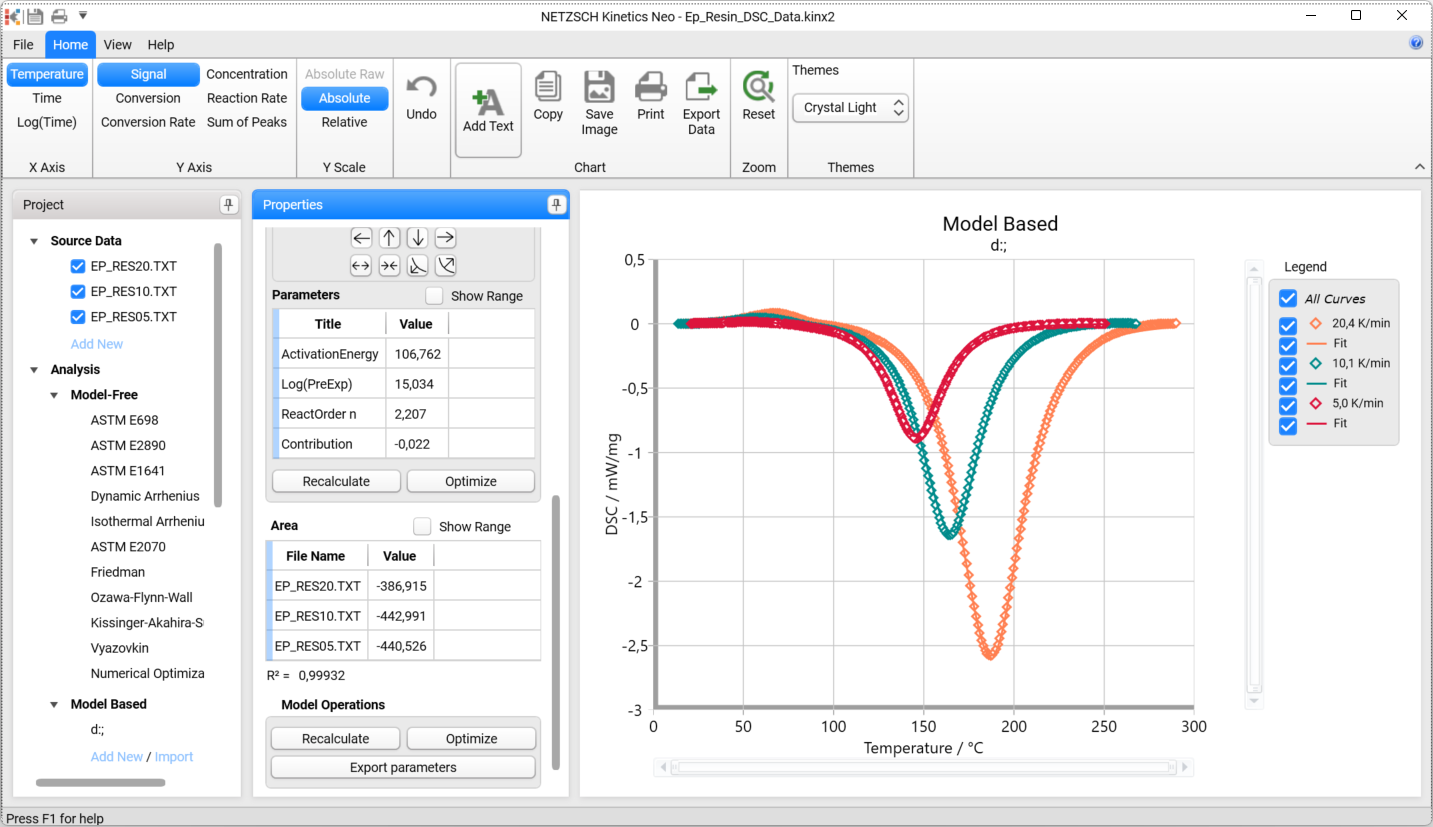
In this How To: guide, a double step kinetic model for DSC data will be created. These data have two peaks of different directions:
- endothermal melting
- exothermal curing.
This is the two-component curing system, where curing occurs immediately after melting of one component in this system.
We will start by loading a sample data project included in Kinetics Neo, will then create a kinetics model consisting of only one main step, will then add the small additional step to have double-step model.
Just a few clicks in over the course of a few minutes - and you will have your kinetics model!
Sample data:
- Data type: differential scanning calorimetry (DSC)
- Project file: Ep_Resin_DSC_Data.kinx2
Load the Sample Data Project
1. Start the Kinetics Neo software.
Click on the File tab on the main top ribbon to open the application menu.
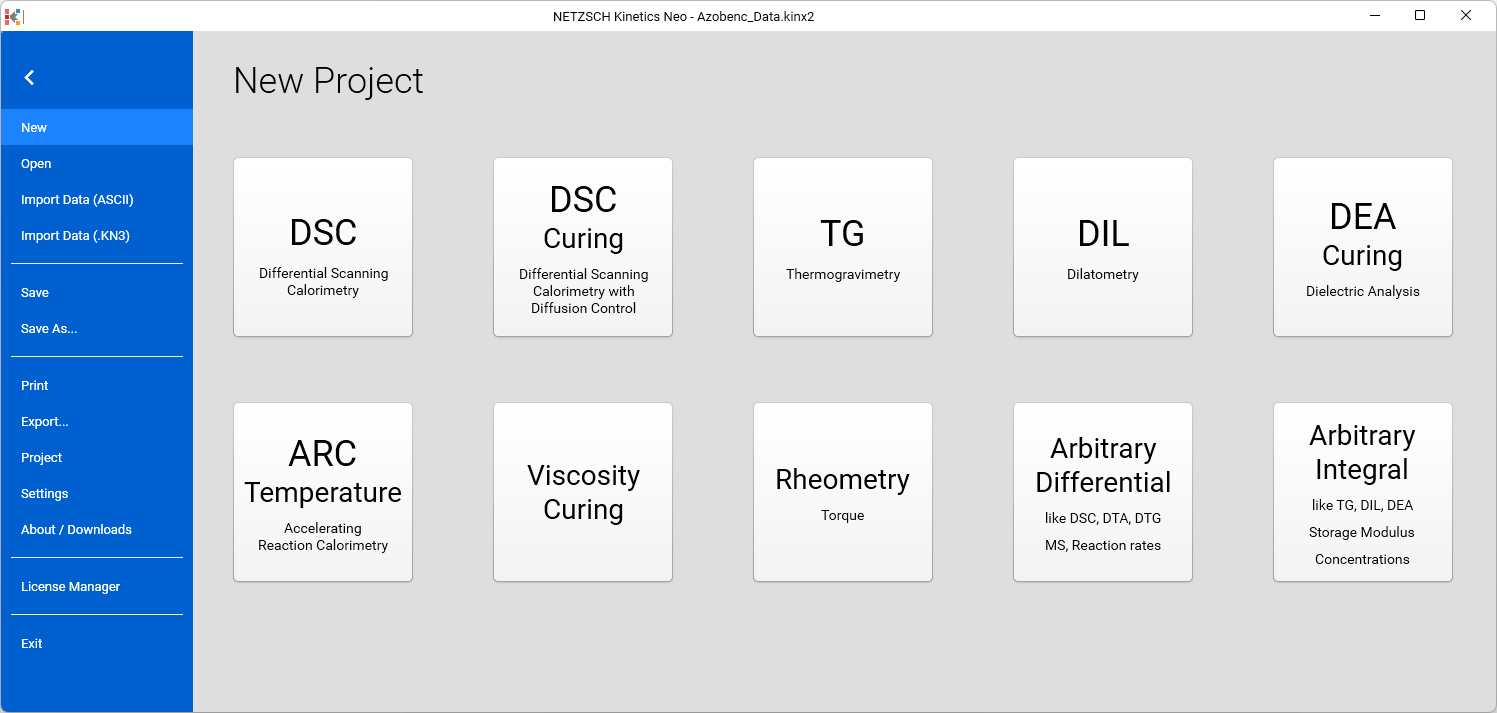
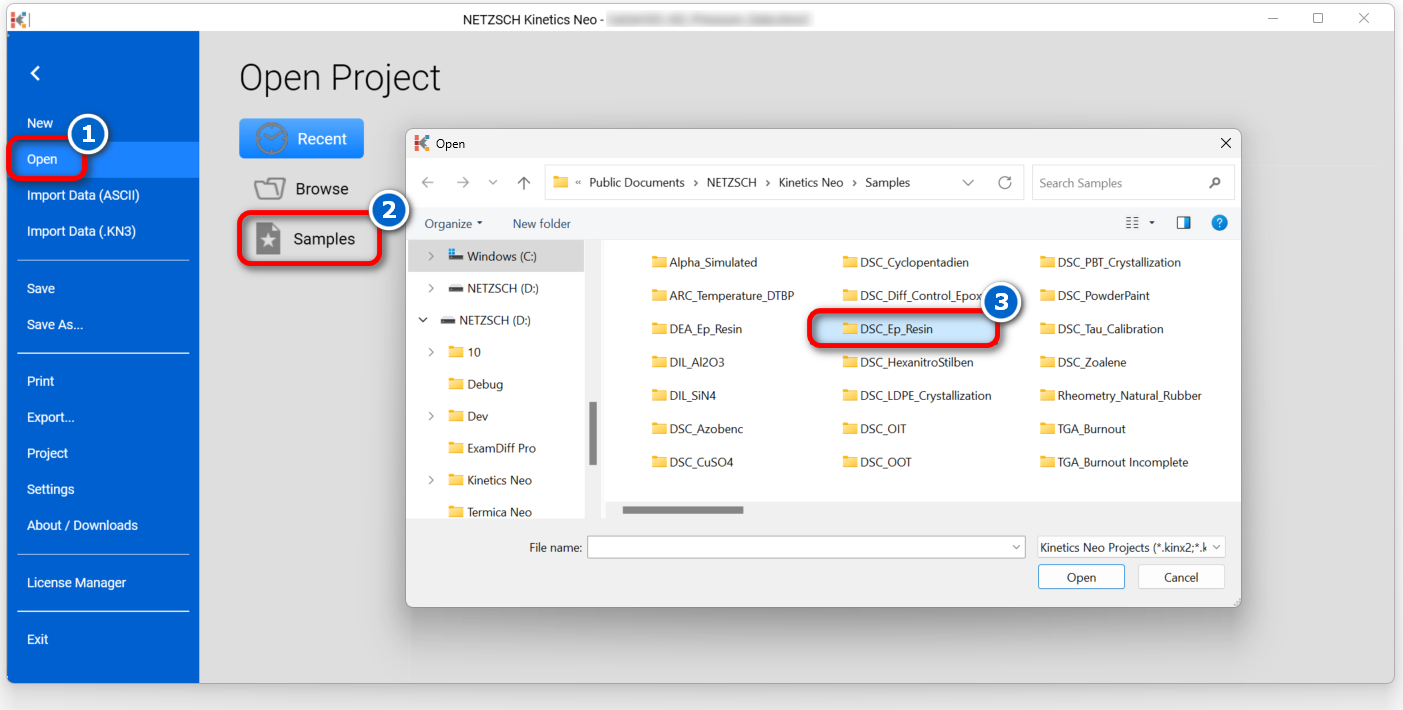
2. Open Sample Data DSC project.
Click on Open in the menu on the left side, then select Samples. The Kinetics Neo samples directory will be opened in Windows Explorer.
Select directory DSC_Ep_Resin.
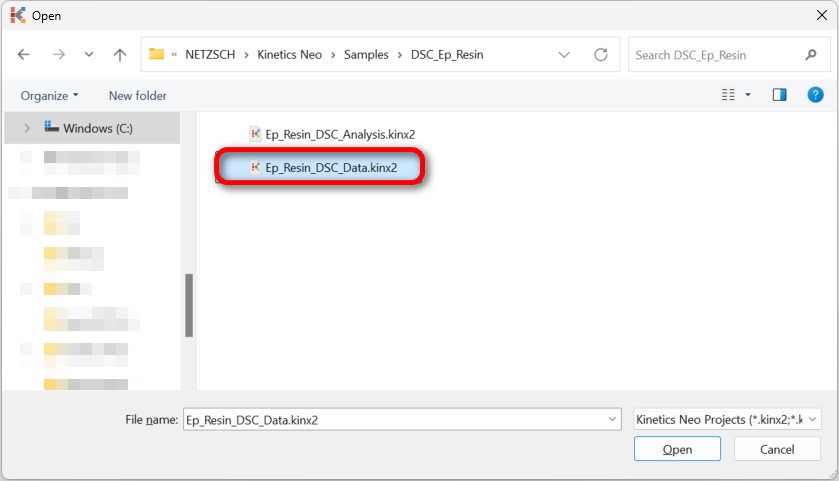
3. Open the Kinetics Neo project file Ep_Resin_DSC_Data.kinx2 .
Check the Loaded Measurement Data
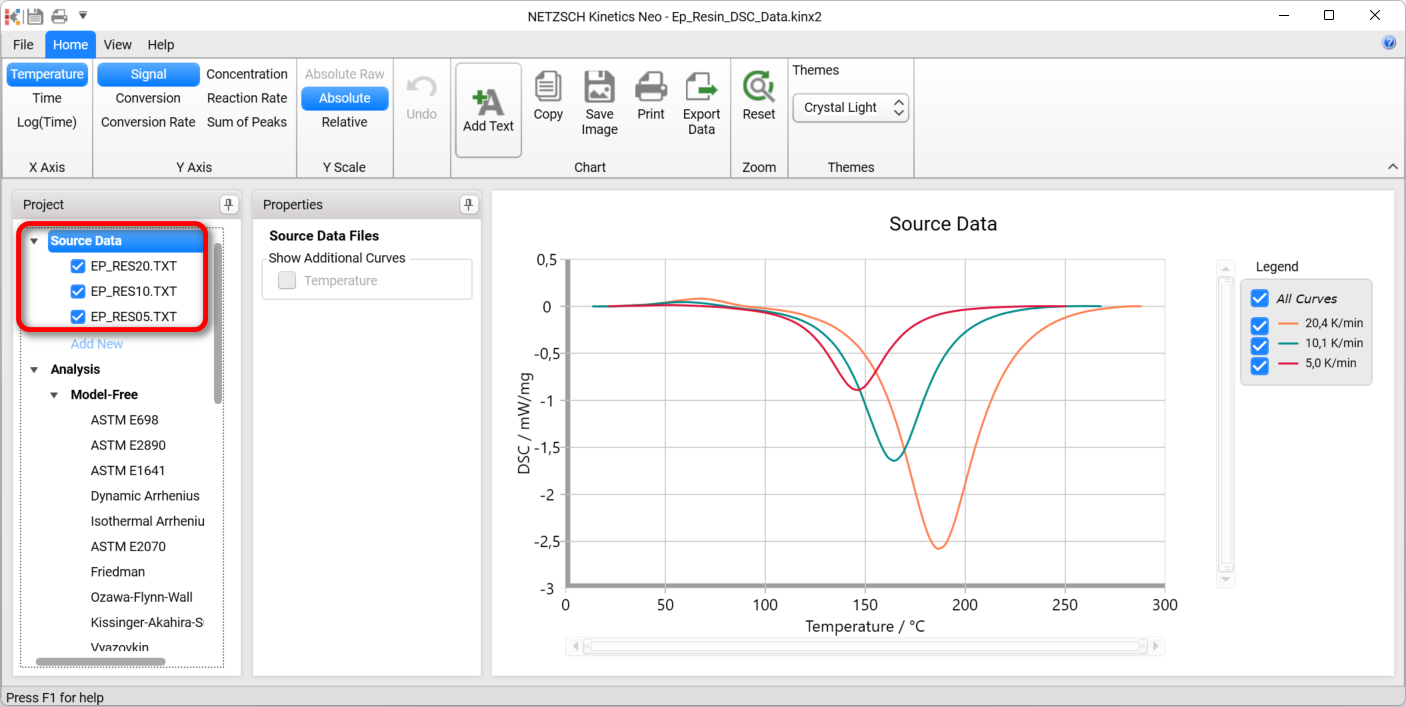
4. Check whether the DSC measurement data are loaded.
The Kinetics Neo sample project Ep_Resin_DSC_Data.kinx2 already contains imported sample DSC data files for Curing of Epoxy Resin:
- Ep_RES20.TXT – heating rate 20K/min
- Ep_RES10.TXT – heating rate 10K/min
- Ep_RES5.TXT – heating rate 5K/min
If the project file is successfully loaded then these file names will be seen in the Source Data section on the left panel. The data curves will be shown on the main chart.
Create a One-Step Kinetic Model for Exothermal Effect
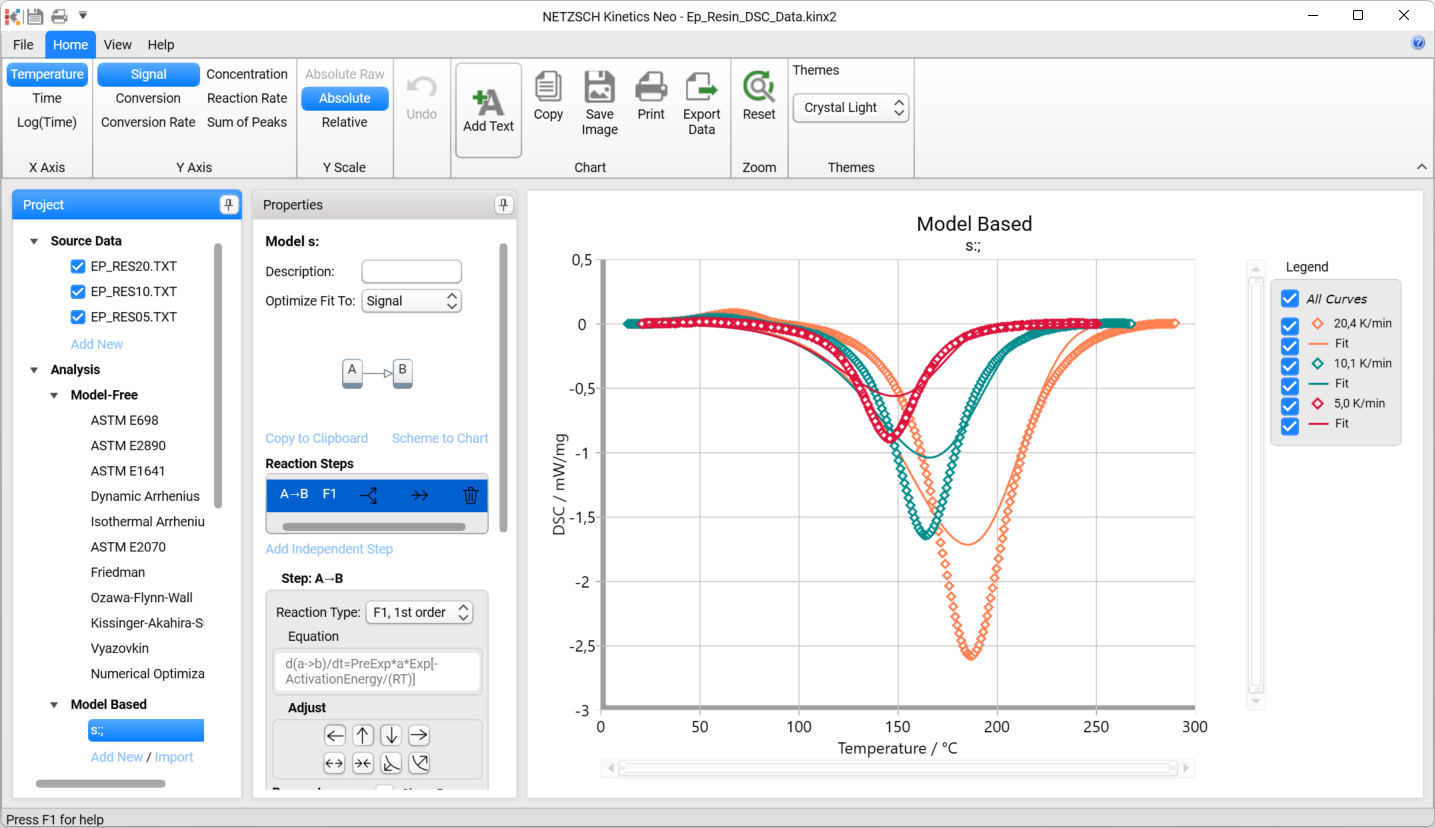
5. Add new model: In the left Analysis panel under Model Based click on Add New.
A new Model Based kinetic model will be created with default parameters:
- One step: A → B
- Reaction type: F1, 1st order reaction.
6. Change reaction type for A → B kinetic step
It is known that curing reactions are usually autocatalytical reactions.
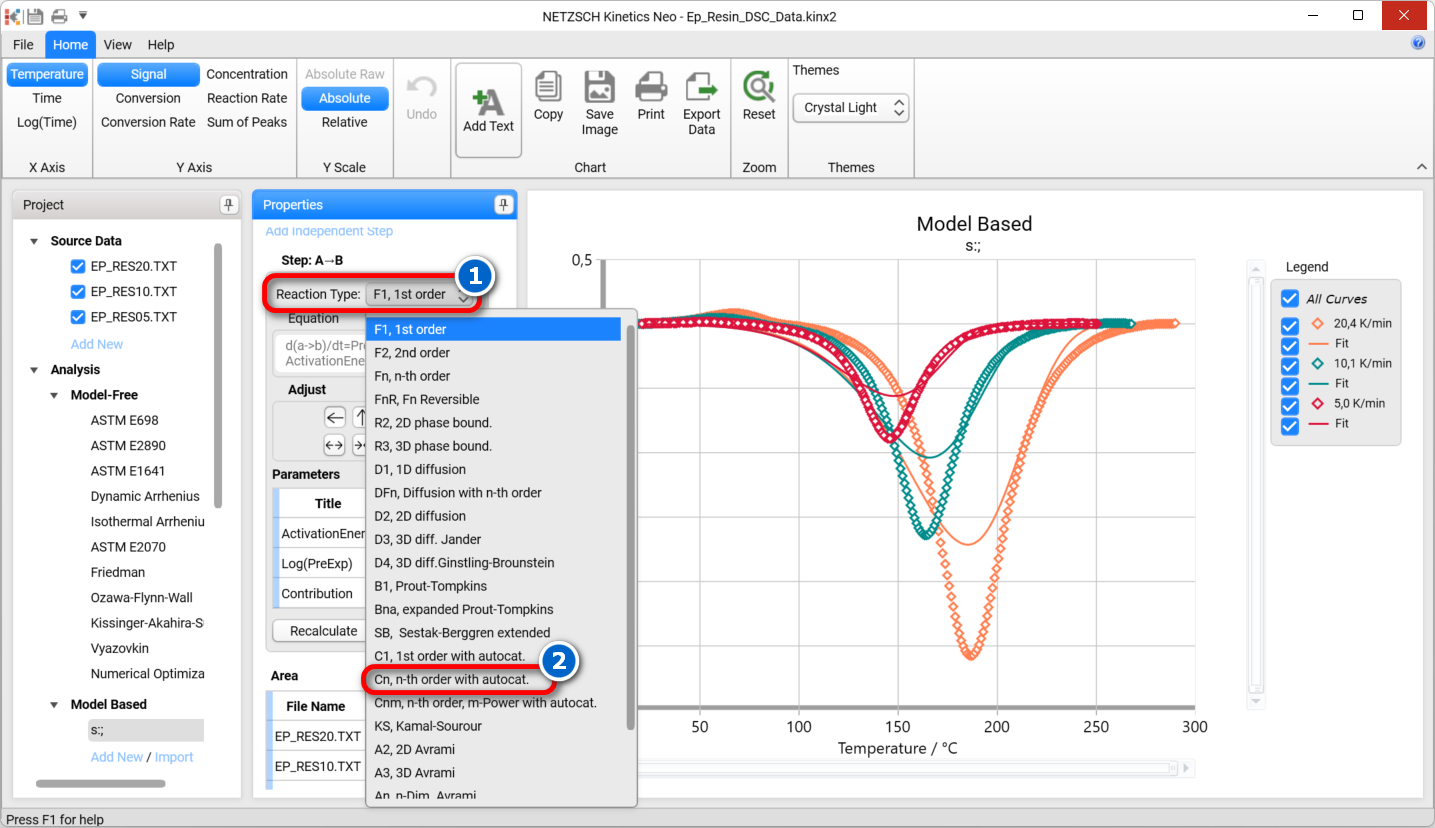
In this case it is recommended to select reaction with autocatalysis Cn with unknown reaction order "n" and unknown order of autocatalysis: Cn, n-th order with autocat. Using model optimization the software will determine the correct reaction order on its own.
Select step A → B, then select reaction type Cn, n-th order with autocat.
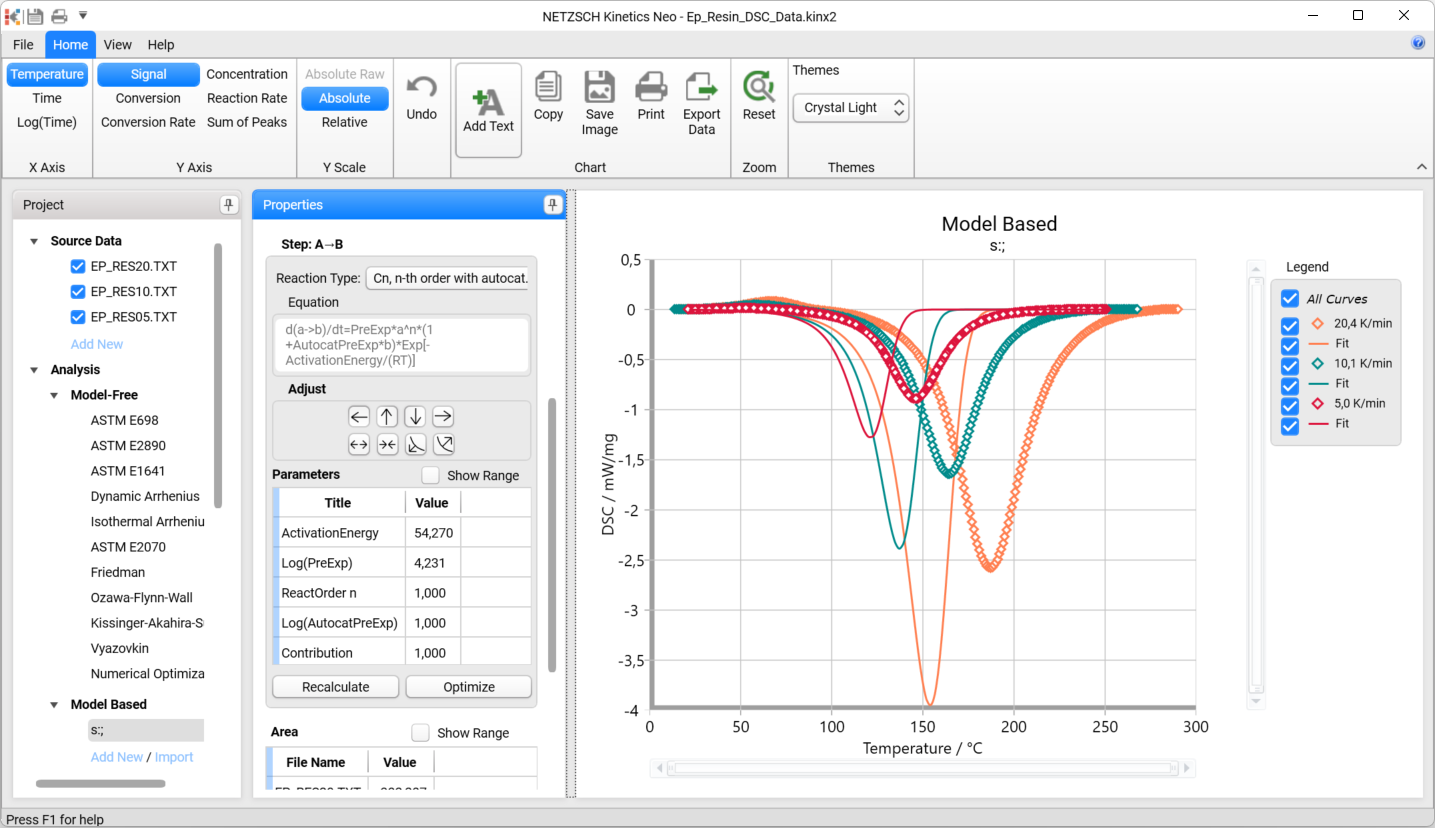
Result after changing of reaction type to Cn:
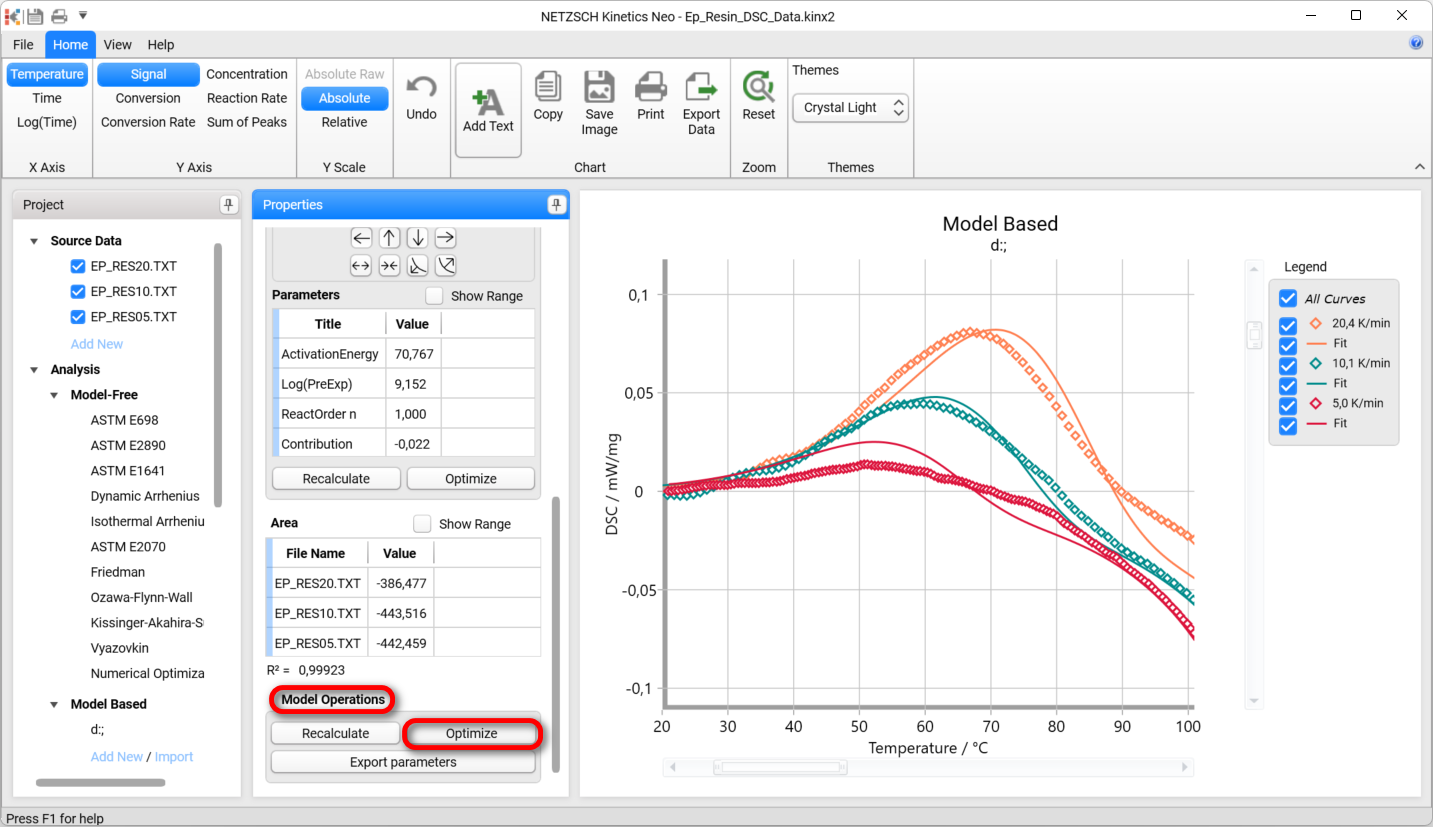
7. Optimize one-step model. In Model Operation section at the lower part of Properties panel select Optimize.
The model step will be optimized. This may take a few seconds...
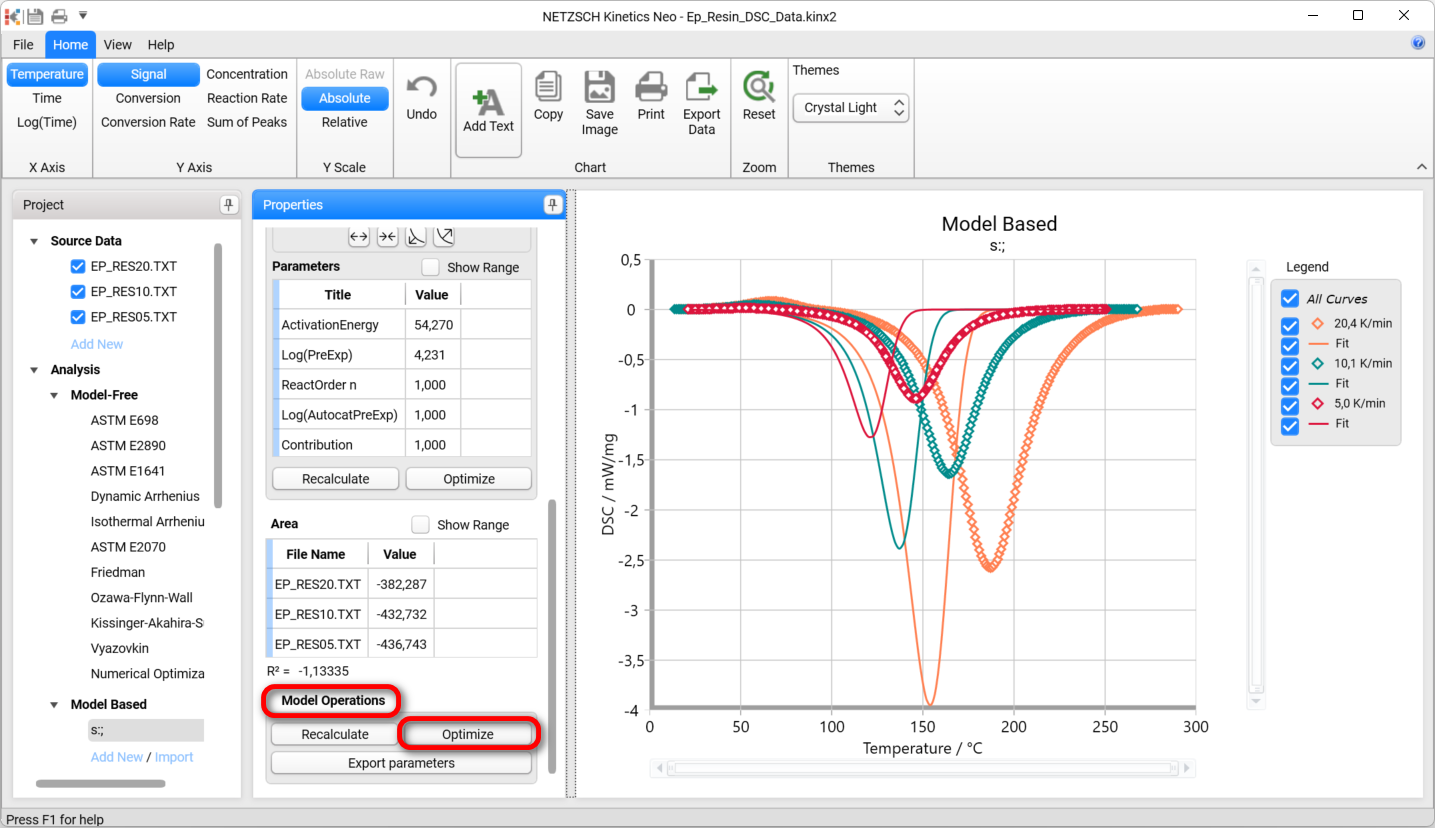
Result after model optimization:
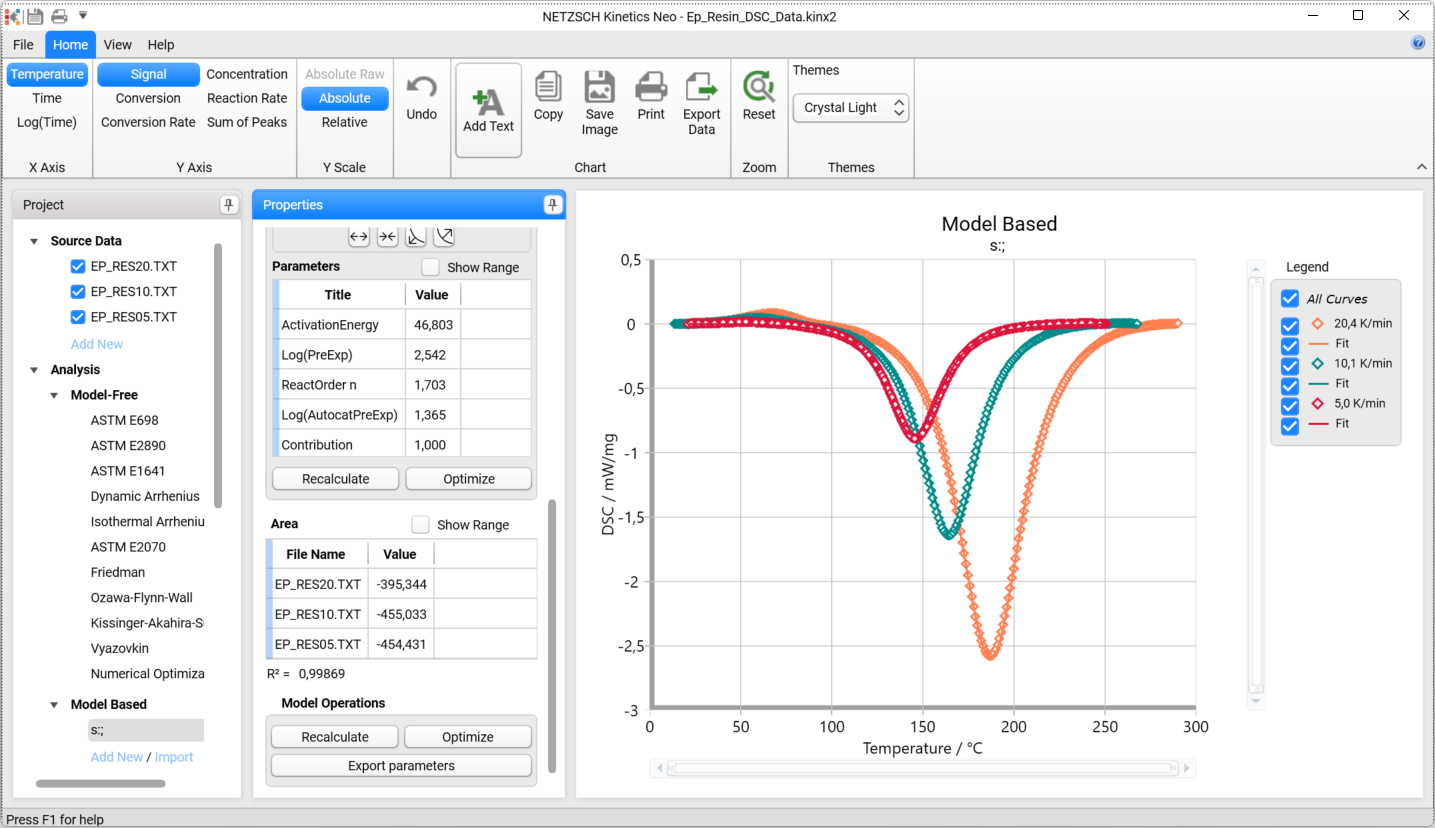
One-step kinetic model is ready. It describes the exothermal curing process. But is it enough to fit all data? Unfortunately not.
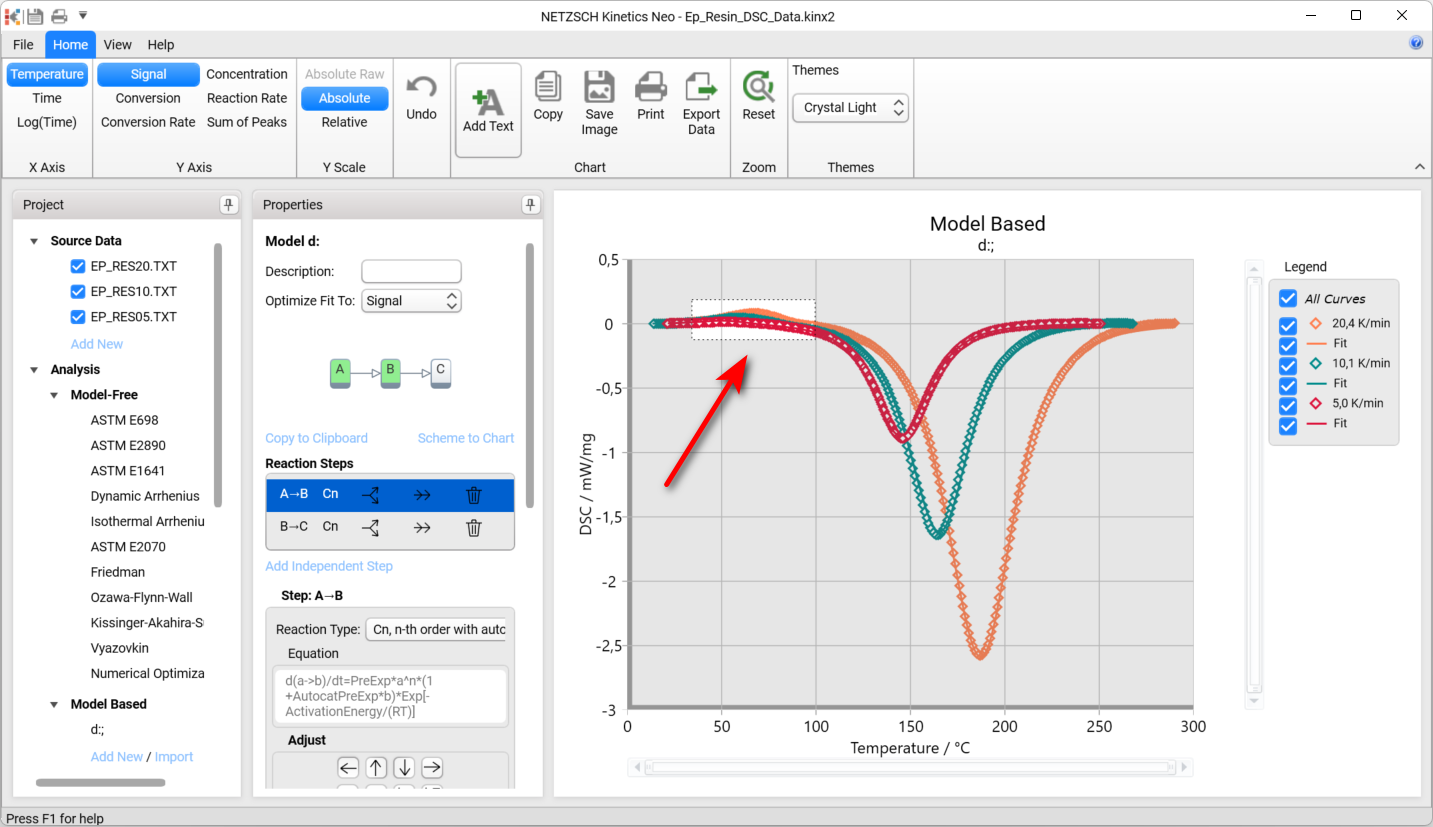
Please zoom in the top left area of the chart: move mouse to the desired area, hold left mouse button and select area to zoom. You will see that there are significant differences between measurement and simulated data. This is because our 1-step kinetic model can't describe the endothermal melting peak at 50°C - 100°C.
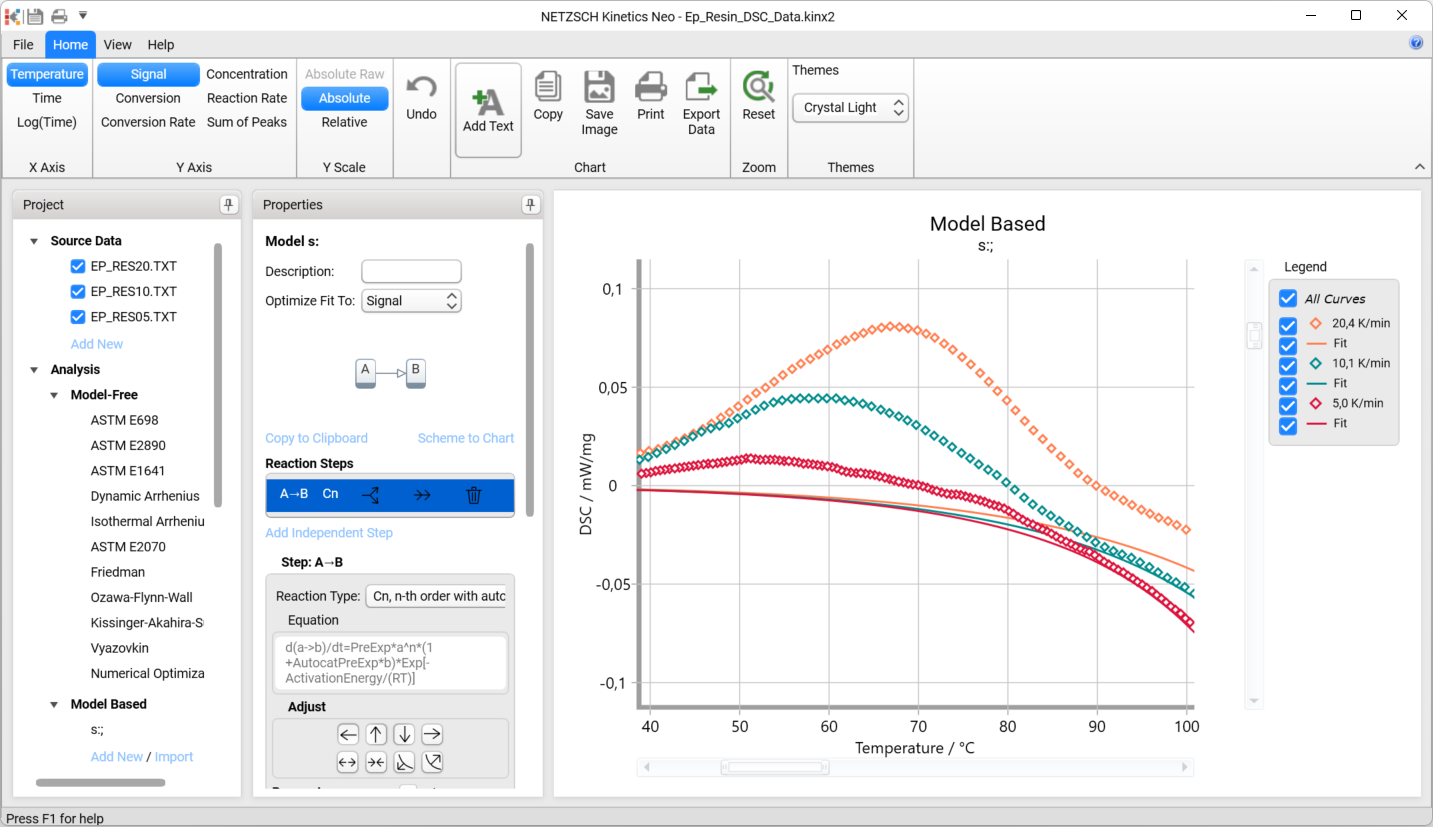
In top Ribbon toolbar in group Zoom click Reset to set chart zoom back to original 100% and see the complete chart.

Extend the Kinetic Model by Adding of a New Step for Endothermal Effect
We would like to add the additional step, which has the meaning of endothermal melting at 50°C - 100°C. It is known from the chemistry of the process, that the curing occurs after melting. Thus, we would like to create double-step kinetic model, where the steps are connected consequently.
8. Add consecutive step.
In Properties panel select step A →B, and click on Add consecutive step symbol.
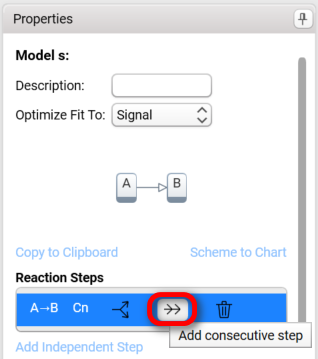
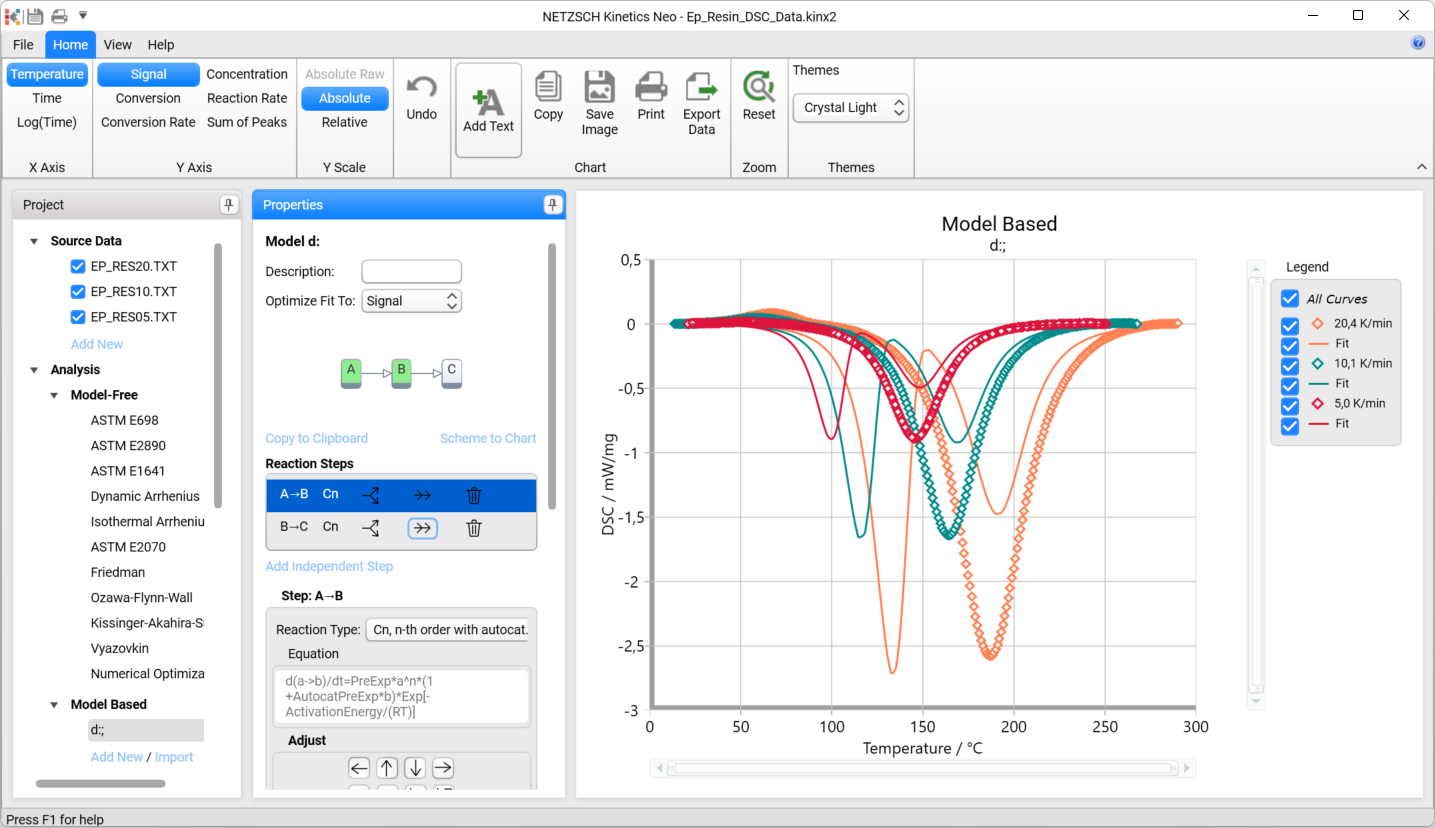
Now the simulated model has two steps, but the first of them is too large, too late and still exothermal. We should decrease it, make it endothermal and then move to the lower temperatures.
9. Decrease contribution of the first step
In the Properties panel in the list of Reaction Steps select the first step A →B and then reduce its contribution (click on arrow down).
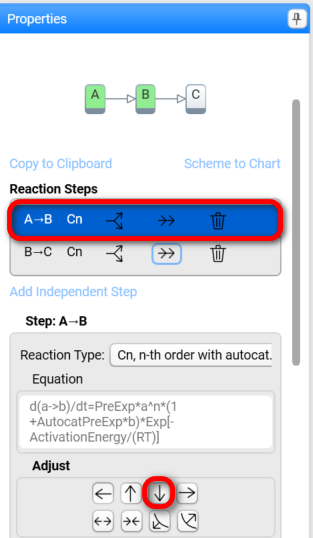
Second step will be added to the model:
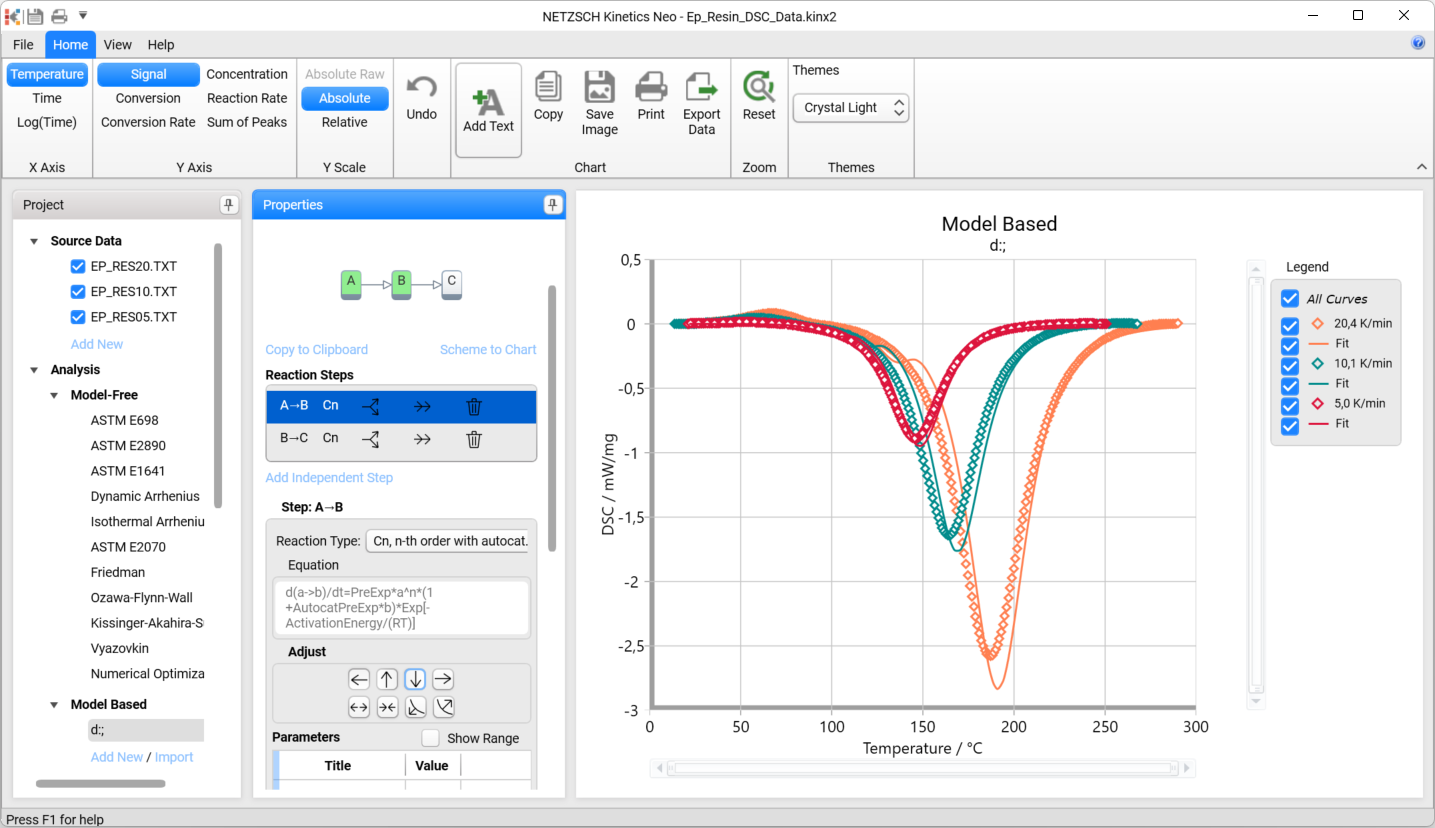
10. Now both reaction staps have correct direction, but don't fit the measurement data good. First step is too late, and the second a little bit biger as it should be. We should optimize the whole kinetics model again to adjust the steps positions and contribution.
In Model Operation section at the bottom part of Properties panel select Optimize.
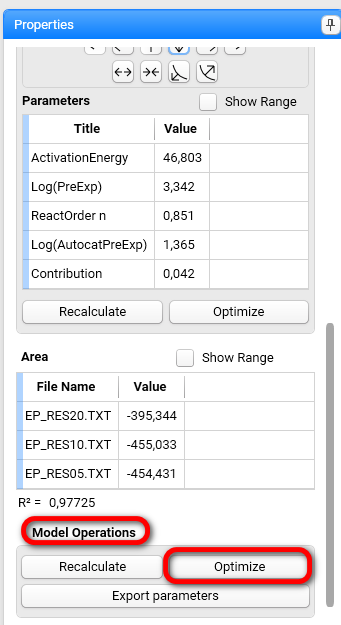
Now the model looks much better:
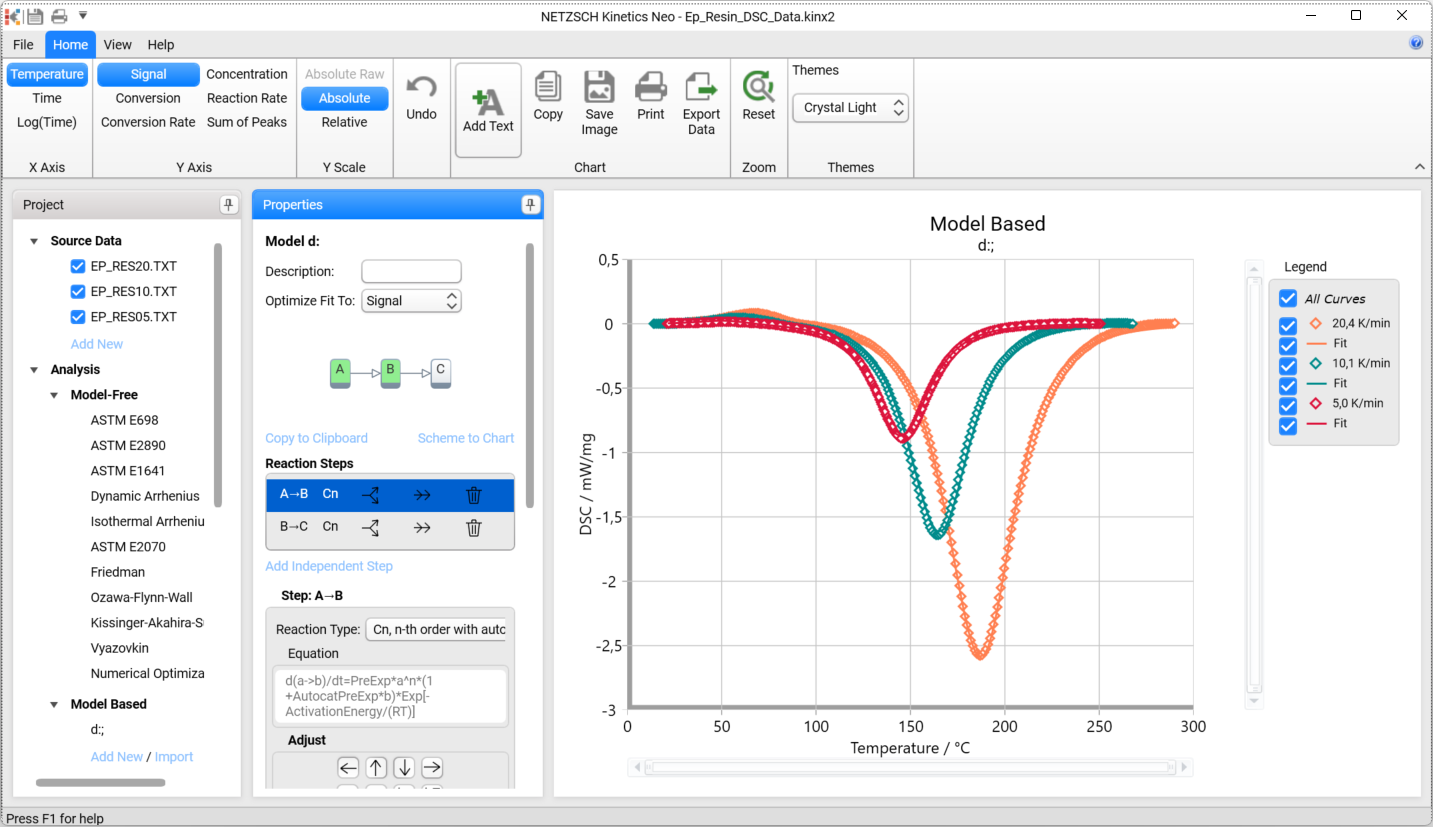
11. Zoom endothermal peak: select the zoom area by the mouse by holding the left mouse button.
The chart range is zoomed:
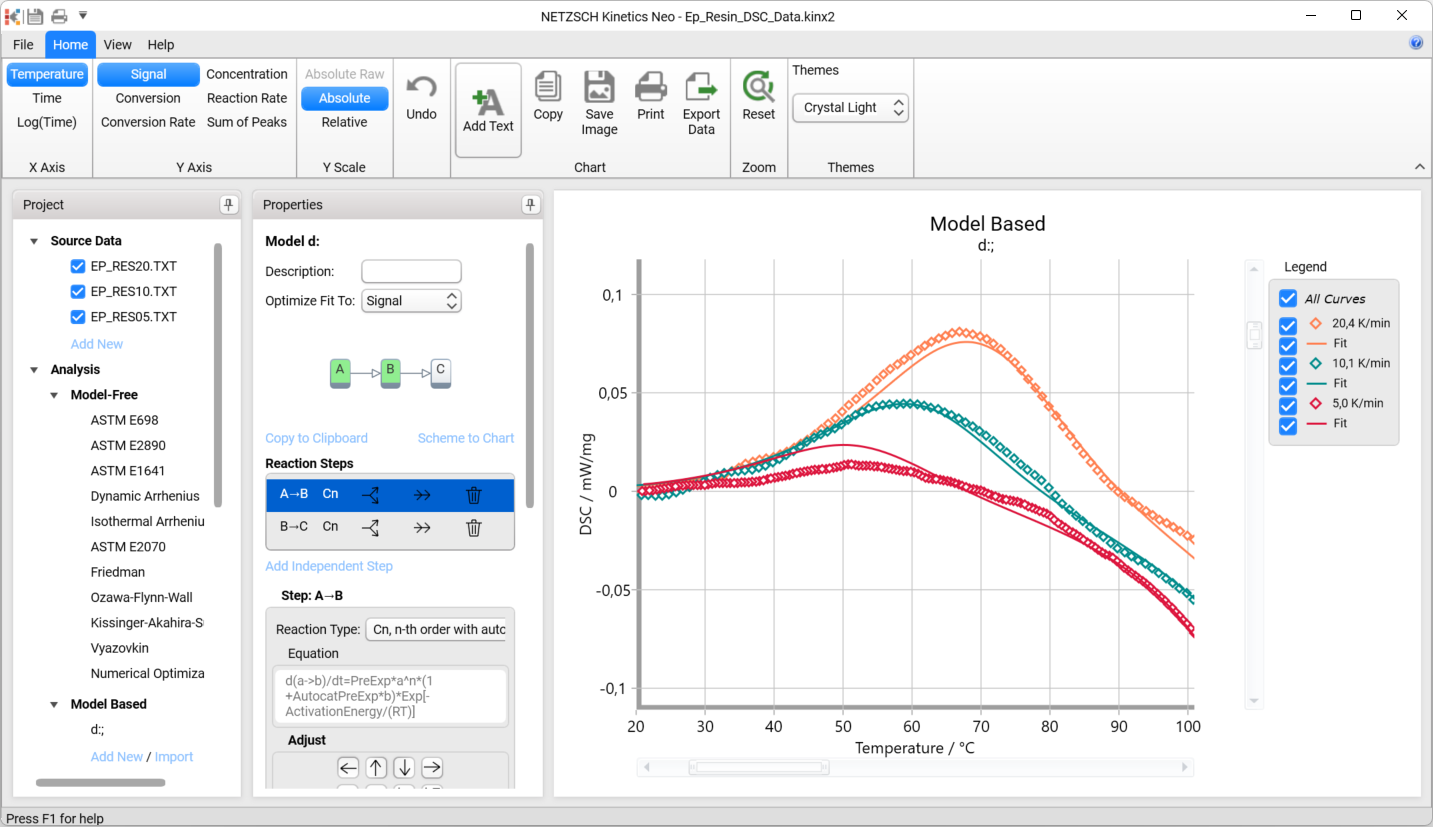
Now we see that the first endothermal peak shows good fit with the data.
Change the Reaction Type of the First Step to Fn
12. The model shows good fit with the data. The problem is that the first andothermal peak is a melting, not a curing or autocatalitical reaction. So, the reaction type Cn is not correct here. We should select type Fn - general reaction on n-th order.
Select first step and change reaction type fron Cn to Fn:
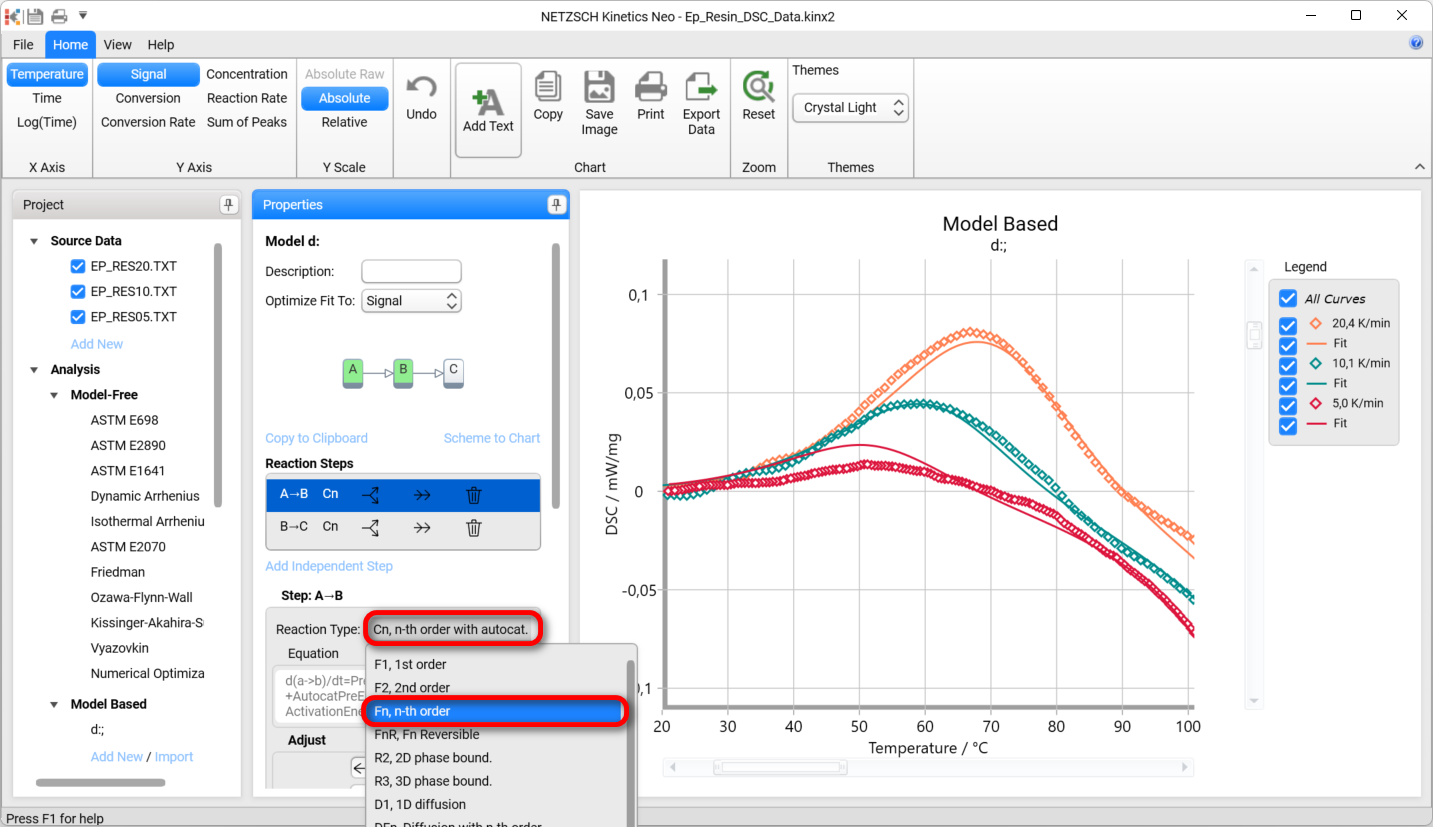
Reaction type of the first step will be set to Fn:
In the top ribbon toolbar click Reset to set chart zoom to original 100% and see the complete model:
Optimize Final Model
Now two-step kinetic model with endothermal and exothermal steps is ready.
13. Optimize the model
In Model Operation section at the bottom part of Properties panel select Optimize.